

Most inspection checklists get tested in an office, on a fully charged phone, by someone with good eyesight and steady hands. Then they get shipped to a technician standing on a rooftop at 2pm in July, wearing cut-resistant gloves, squinting at a screen with no signal, trying to tap a checkbox the size of a grain of rice.
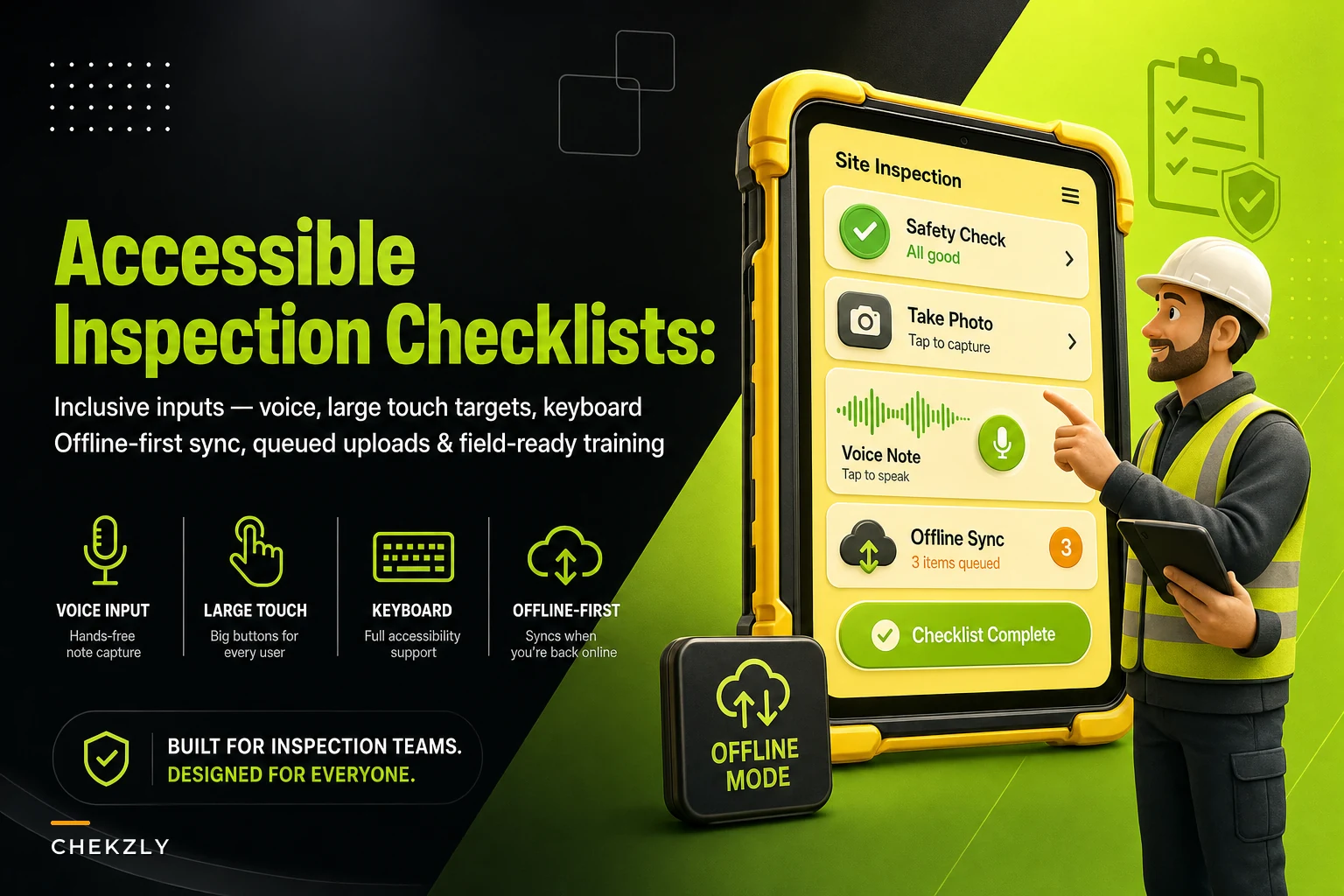
That gap is where accessible inspection checklists live or die. And "accessible" here doesn't just mean compliance-flavored screen reader support — though that matters too. It means designing input patterns that survive real field constraints: gloves, glare, noise, dead zones, older inspectors, color-blind inspectors, and people who are simply moving fast because they've got nine more sites before dark.
This post stays narrow on purpose. It's about the actual input mechanics and offline fallbacks that make a checklist usable in the field, plus the small training changes that make those patterns stick. Not governance, not analytics — just the moment where a human hand meets a form under bad conditions.
The conditions that break checklists (and nobody designs for)
Field environments are hostile to touchscreens in ways that don't show up in design reviews. A quick inventory of what actually goes wrong:
-
Gloves. Nitrile is usually fine. Leather, cut-resistant, or insulated gloves turn precise tapping into a guessing game. Inspectors either strip a glove off (safety risk) or tap wildly and mis-select.
-
Glare and low light. Direct sun washes out low-contrast fields. Dim mechanical rooms make small gray text invisible.
-
Motion and instability. One hand on a ladder rail, one hand holding the phone. There's no "two-thumb typing" happening.
-
Noise. Voice input sounds great until you're next to a running compressor or on a live production floor.
-
Dead zones. Basements, elevator shafts, rural sites, thick concrete. Signal drops mid-form and the app either freezes or silently loses data.
-
Cognitive load and fatigue. By the eighth inspection of the day, small fiddly interactions cause errors that a rested person wouldn't make.
Worth internalizing: most "inspector error" on checklists is actually input-friction error. The inspector knew the answer. The form made it hard to record correctly. If you've already worked on reducing mental overhead by modularizing your inspection forms to cut cognitive load, input accessibility is the physical-layer version of that same fight.
Input patterns that actually hold up in the field
Different conditions call for different input methods. The mistake most teams make is picking one input style and forcing it everywhere. A better approach is matching the input pattern to the constraint.
Eliminate inspection delays and errors.
Chekzly helps you plan, execute, and document inspections efficiently and accurately.
- Real-time inspection tracking
- Automated report generation
- Compliance and checklist management
No credit card required
| Field constraint | Input pattern that works | Input pattern that fails |
|---|---|---|
| Heavy gloves | Large touch targets, big toggle buttons, voice | Small checkboxes, dropdowns, free-text typing |
| Direct sun / glare | High-contrast, dark-on-light, bold outlines | Gray-on-white, thin fonts, subtle color states |
| Loud environment | Large touch targets, photo capture | Voice-to-text |
| One-handed / on a ladder | Thumb-reachable buttons, swipe-to-advance | Multi-field forms requiring scrolling |
| No signal | Fully offline capture with local storage | Anything that requires a live server call |
| Color-blind inspector | Text labels + icons + color | Color-only pass/fail (red/green) |
A few specifics worth calling out.
Large touch targets aren't optional. The rough working standard is a tappable area of at least 44–48px, but in the field you want bigger — think closer to a fingertip-plus-glove size. Pass/Fail/N/A as three fat buttons beats a single checkbox every time. Harder to mis-tap, faster to confirm visually.
Pass/Fail/N/A as three fat buttons beats a single checkbox every time.
Voice input is a supplement, not a default. Voice-to-text for notes fields is genuinely useful when an inspector is describing a defect while photographing it. But it collapses in noise, and it produces messy text that needs cleanup. Use it for the "describe the finding" fields, never for the pass/fail decisions that drive your results.
Color must never carry meaning alone. Roughly 1 in 12 men has some form of color vision deficiency. A checklist where "green means pass, red means fail" and nothing else is a genuine accessibility failure that also produces real data errors. Every status needs a text label and ideally an icon. This is the single cheapest fix on the list and it gets skipped constantly.
Reduce typing to near zero. Every free-text field is a friction point. Pre-fill what you can, use pick-lists for common defects, and reserve typing — or voice — for the genuinely open-ended notes.
The offline problem is bigger than people think
Offline handling is where checklists quietly hemorrhage data. The failure is rarely dramatic. It's a drip.
A typical example: an inspector completes a 40-point checklist in a subterranean utility vault. No signal the whole time. The app appeared to save each entry. When they surface and reconnect, a sync conflict silently drops the notes on items 12 through 19 because the app defaulted to keeping the server's empty version. Nobody notices until an auditor asks about item 15 three months later.
-
Everything captures locally first. The form should never require a live connection to record an answer. The network is treated as a background convenience, not a requirement.
-
Visible sync status. The inspector should always see whether their work is "saved on device" versus "synced to server." A small persistent indicator prevents the "I thought it uploaded" gap.
-
Photos queue locally and upload later. Image capture is the most common thing to fail on weak signal. It has to store on-device and sync when possible, without blocking the inspector from finishing.
-
Conflict rules favor the field. When a sync conflict happens, the inspector's on-device data should win by default, or at minimum trigger a manual review — never silently overwrite.
-
A manual export escape hatch. If sync fails entirely, the inspector should be able to export or share the completed record some other way — a file, a local backup — so the work isn't trapped.
The insight here: treat every inspection as if it will happen offline, then let connectivity be a bonus. Teams that design online-first and bolt offline on afterward always end up with the silent-data-loss problem.
A short workflow: designing one accessible checklist field
Here's how the thinking plays out on a single line item — say, "Fire extinguisher inspection tag current?"
-
Three large buttons — Pass / Fail / N/A — each big enough to hit with gloves, each with a text label, an icon, and a color.
-
If Fail is selected, a photo prompt appears automatically. The evidence gets captured at the moment of the finding, not reconstructed later.
-
A voice-enabled notes field opens for the description, with a fallback keyboard for noisy environments.
-
The entire interaction saves to the device instantly, with a "saved locally" confirmation tick.
-
On reconnect, it syncs and the tick updates to "synced."
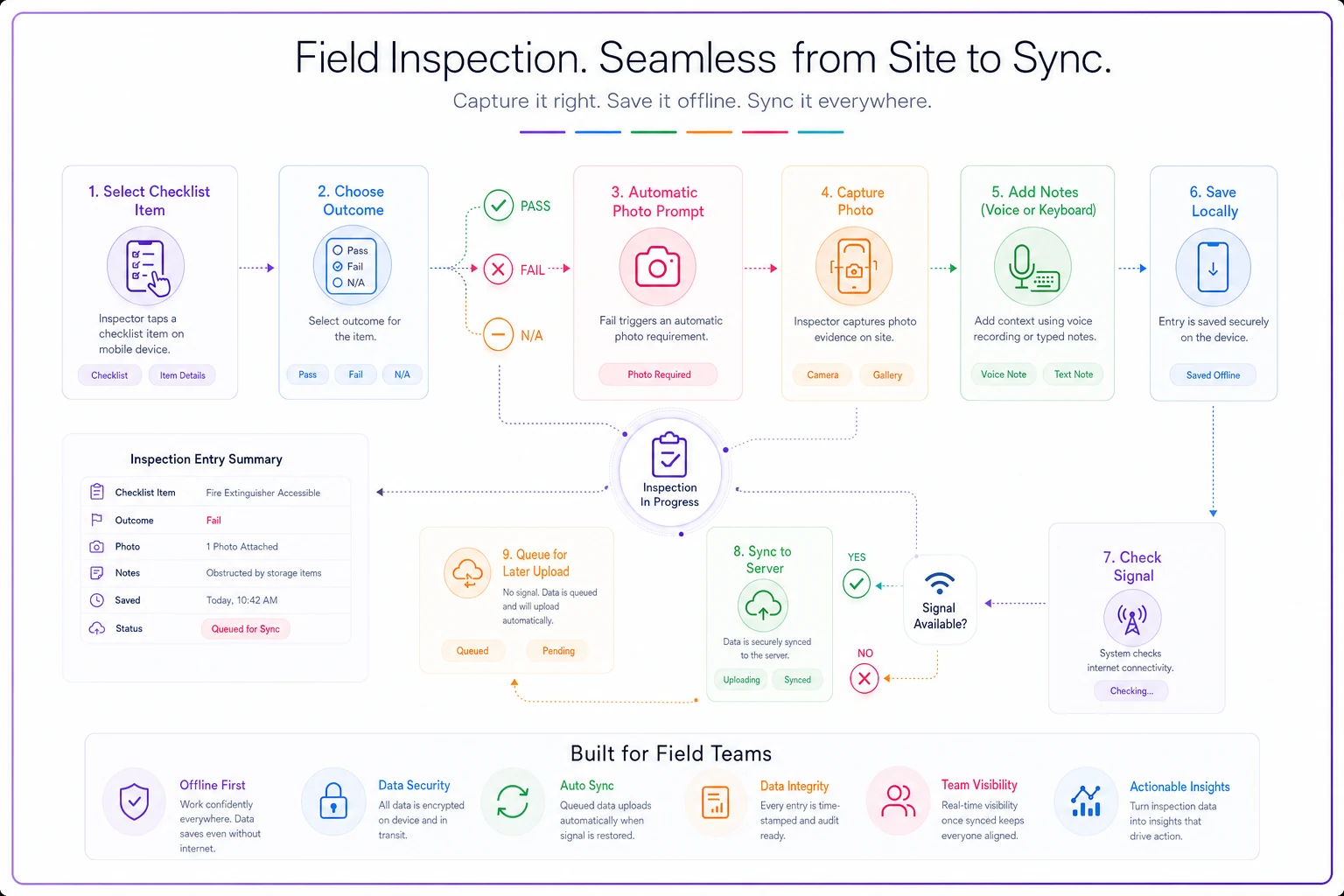
That's one field. Multiply that discipline across the whole form and you get a checklist that produces clean data whether the inspector is in a boardroom or a boiler room.
Training adjustments that make the patterns stick
New input patterns fail when they're introduced silently. Inspectors who've been tapping tiny checkboxes for years won't automatically trust three big buttons, and they definitely won't trust "it's saved even with no signal" until they've seen it work.
-
Run a deliberate dead-zone drill. Have new inspectors complete a full checklist with airplane mode on, then reconnect and confirm the data synced. Once they've seen their offline work survive, they stop panicking about signal.
-
Teach the sync indicator explicitly. Don't assume people read the little icon. Show them what "saved locally" versus "synced" looks like and what to do if sync is stuck.
-
Practice with gloves on. If your inspectors wear gloves in the field, they should train with gloves on. Testing bare-handed is how you end up shipping targets that are too small.
-
Cover voice-input etiquette. When to use it, when it'll produce garbage, and the habit of glancing at the transcribed text before moving on.
These belong in your onboarding path, not a one-off memo. If you're already building structured ramp-up for field staff, folding input-accessibility drills into your existing new-hire onboarding and competency checks is the natural home for them. Competency here isn't just "knows the standard" — it's "can record findings correctly under field conditions."
It's also worth noting that AI-powered operational platforms can flag when offline sync failures are recurring across specific inspectors or sites, which turns a hidden drip problem into something you can actually see and address. That kind of operational visibility is hard to get from a basic form tool.
When to invest in this — and when not to bother
Accessibility rework isn't free, and not every program needs the full treatment at once.
When it's clearly worth it:
-
Your inspectors work in variable field conditions — outdoors, industrial sites, remote locations.
-
You've got recurring "missing data" or "note got lost" complaints.
-
You have an aging or vision-diverse workforce.
-
Connectivity at your sites is genuinely unreliable.
When it's lower priority:
-
Inspections happen in controlled indoor settings with reliable signal, one inspector, no gloves.
-
Your form is short and simple enough that friction isn't a real cost.
Who should hold off: teams that haven't fixed their form structure yet. Adding big buttons and voice input to a bloated, confusing checklist just makes a bad form more comfortable to fill out wrong. Sort out the content and modular structure first, then optimize the input layer.
A real scenario
A regional facilities inspection outfit — around a dozen inspectors covering commercial buildings — kept losing data on basement and mechanical-room inspections. Their app was online-first, and somewhere around 15% of inspections were coming back with missing photos or blank notes fields that inspectors swore they'd filled in.
The fixes were unglamorous. Offline-first capture with a visible sync indicator, conflict handling flipped so the device copy won by default, larger pass/fail controls, and a mandatory photo prompt on any failed item. Then they ran the dead-zone drill with every inspector.
Within a couple of months, the "missing data" tickets dropped to a handful. The ones that remained were genuine oversights, not lost work. The photo-on-fail rule also cut the "can you go back and get a picture" callbacks that had been eating a couple of hours a week in re-visits. No dramatic revenue story. Just less rework and cleaner records when audits came around.
The takeaway
Accessible inspection checklists aren't a compliance checkbox or a design nicety. They're the physical interface between your inspector and your data, and that interface is where a surprising amount of "inspector error" actually originates.
Big touch targets, high contrast, color-independent status, voice where it helps, and genuinely offline-first capture — these are cheap changes that produce cleaner records under the exact conditions your office-tested form never saw. Design for the rooftop, the vault, and the eighth inspection of the day. Everything else is easier.
Accessible inspection checklists aren't a compliance checkbox or a design nicety. They're the physical interface between your inspector and your data, and that interface is where a surprising amount of "inspector error" actually originates.
Ready to modernize your inspection process?
Join 500+ inspection teams using Chekzly to reduce paperwork, improve compliance, and accelerate reporting.